Azure Cloud
Connect your Azure subscriptions so Autoheal agents can investigate incidents across your Azure infrastructure.
You connect one identity and grant it a role on the subscriptions you want agents to read. We recommend Reader, for read-only access. One identity covers as many subscriptions as you grant it access to, so you do not need a separate integration per subscription.
What agents can do
| Capability | Examples |
|---|---|
| Resources & groups | az group list, az resource list |
| Compute | virtual machines and scale sets (az vm list, az vmss list) |
| AKS | clusters and node pools (az aks list, az aks show) |
| Storage & networking | az storage account list, az network … |
| Azure Monitor | metrics and the Activity Log (az monitor metrics list, az monitor activity-log list) |
| Log Analytics | KQL queries (az monitor log-analytics query) |
| Resource Graph | cross-resource discovery across subscriptions (az graph query) |
Set up
How you connect depends on where Autoheal runs. Pick your deployment:
- SaaS
- BYOC
Connect with Microsoft Entra Workload Identity Federation. Create an identity in your Microsoft Entra tenant, and configure it to trust Autoheal's OIDC issuer. Then assign it the Reader role on the subscriptions you want agents to read.
Prerequisites
- One or more Azure subscriptions in a single Microsoft Entra tenant. You also need permission to create a user-assigned managed identity (or an Entra app registration) and assign it a role.
- The issuer, subject, and audience values for your Autoheal tenant. To reveal and copy them, use Get federation values on the Autoheal setup page (see the Federated credential reference below).
- Two values to enter in Autoheal: your Directory (Tenant) ID and the identity's Client ID. You do not enter a subscription ID. The identity covers every subscription you grant it Reader on.
- Azure CLI
- Azure Portal
az identity create -g <resource-group> -n autoheal-readonly
# note the clientId, principalId, and tenantId from the output
Use the issuer / subject / audience from the Federated credential reference below:
az identity federated-credential create \
  --name autoheal-federation \
  --identity-name autoheal-readonly \
  --resource-group <resource-group> \
  --issuer "<AUTOHEAL_ISSUER>" \
  --subject "<AUTOHEAL_SUBJECT>" \
  --audiences "<AUTOHEAL_AUDIENCE>"
Grant Reader on each subscription you want agents to read. Repeat this command for each subscription:
az role assignment create \
  --assignee-object-id <principalId> --assignee-principal-type ServicePrincipal \
  --role Reader --scope /subscriptions/<subscription-id>
# optional, for metrics & logs: --role "Monitoring Reader" / "Log Analytics Reader"
To cover many subscriptions at once, assign Reader once at a management group. The role applies to every subscription beneath it. This needs elevated rights on that management group:
az role assignment create \
  --assignee-object-id <principalId> --assignee-principal-type ServicePrincipal \
  --role Reader --scope /providers/Microsoft.Management/managementGroups/<management-group-id>
Reader gives agents read-only access. Assign a broader role only if you want agents to make changes.
Go to Integrations → Azure Cloud → Workload Identity Federation. Enter your Directory (Tenant) ID and the identity's Client ID. Then click Test Connection → Save. Test Connection lists the subscriptions the identity can read. Check that the subscriptions you expect appear.
Prefer an Entra app registration if your security team needs Conditional Access on the workload identity. Add the federated credential under App registrations → Certificates & secrets → Federated credentials. Assign Reader to its service principal, and use the app's Application (Client) ID.
In the Azure Portal → Managed Identities → Create → pick a resource group and name (e.g. autoheal-readonly) → Review + create.
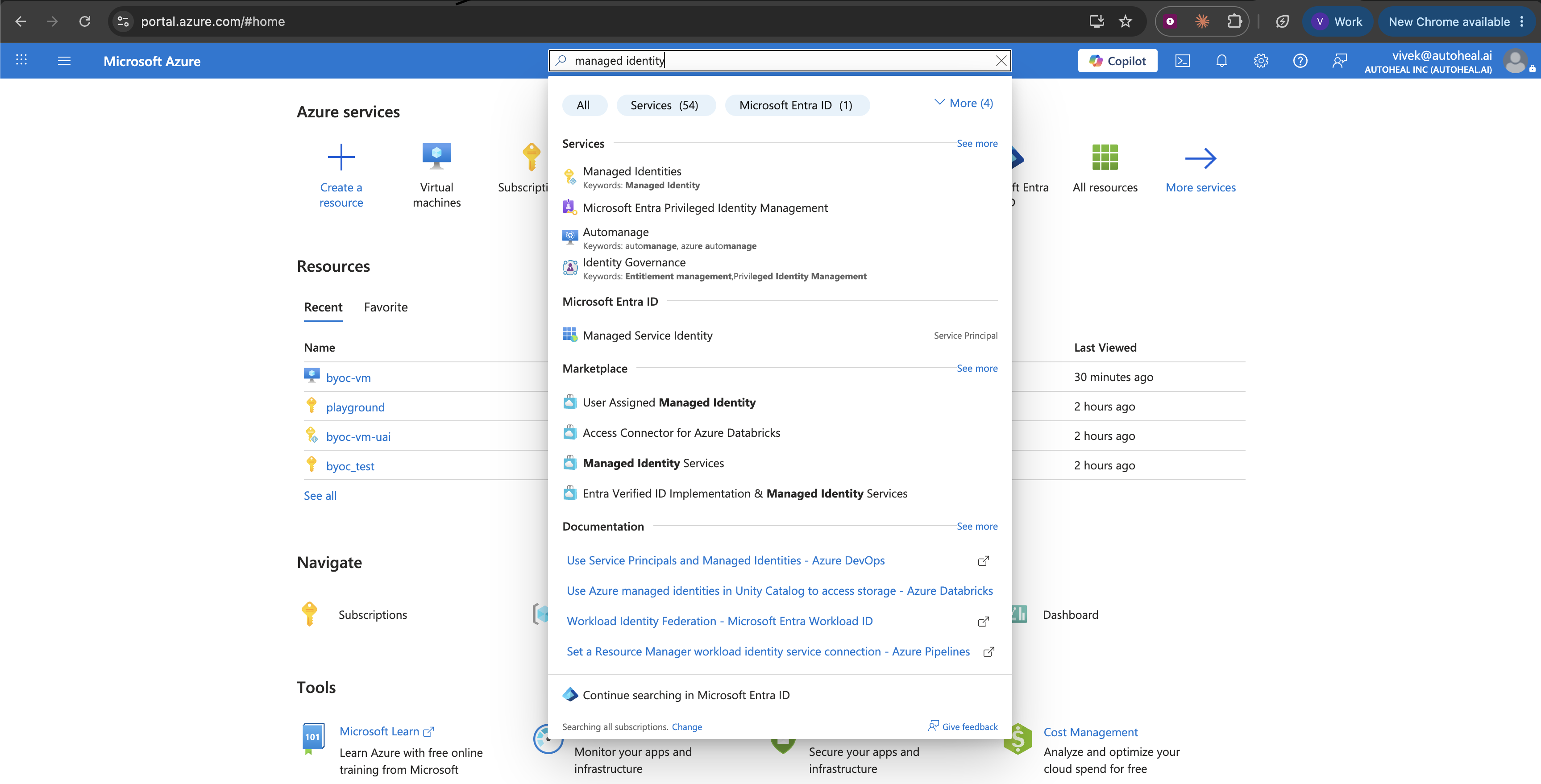
Open the identity → Federated credentials → Add credential → scenario Other issuer. Enter the Issuer, Subject identifier, and Audience from the Federated credential reference below.
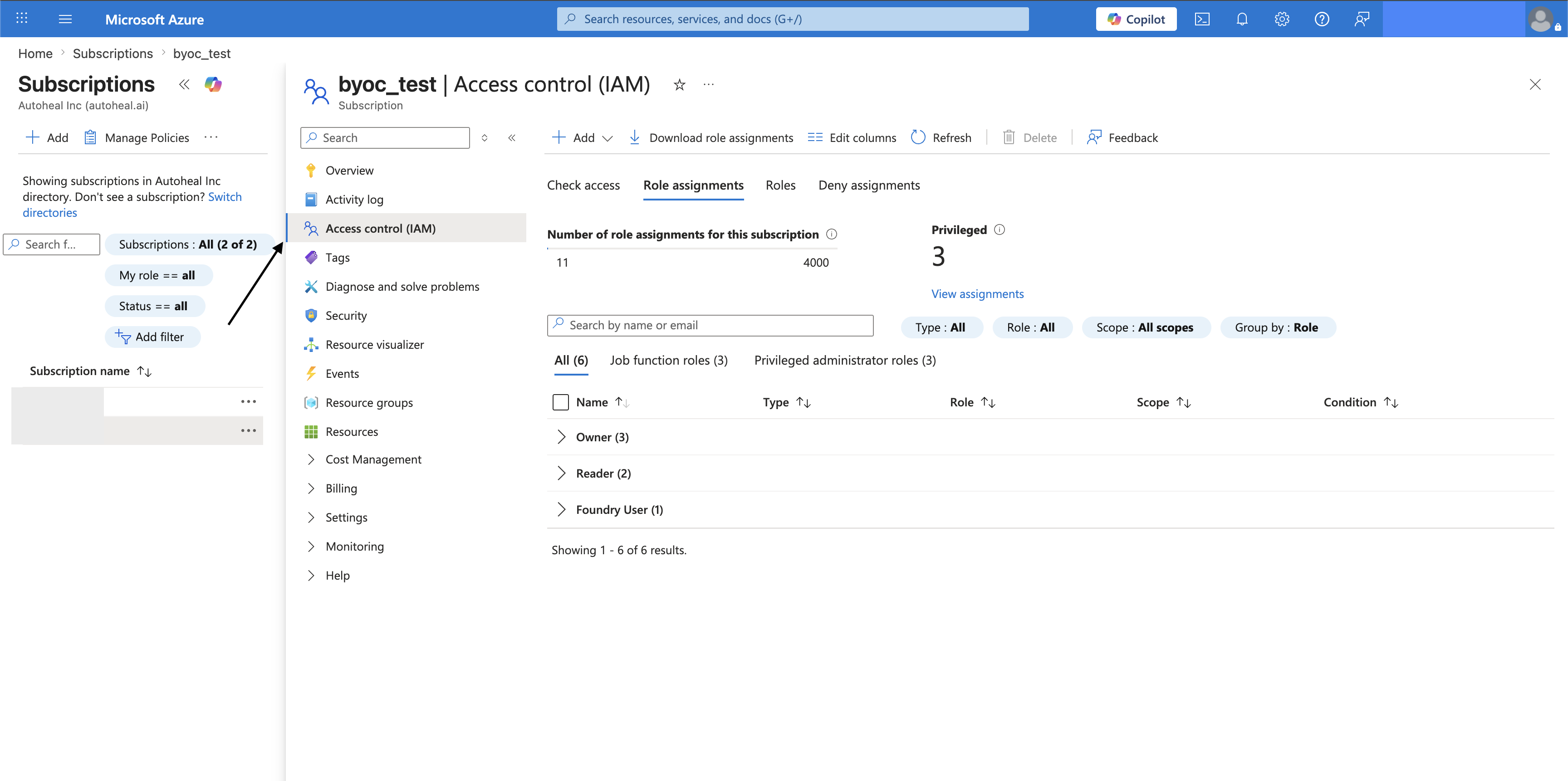
On each subscription you want agents to read, go to Subscription → Access control (IAM) → Add role assignment → Reader. Assign the role to the identity. (Add Monitoring Reader / Log Analytics Reader for metrics and logs.) To cover many subscriptions at once, assign Reader at a management group instead. The role applies to every subscription beneath it.
Go to Integrations → Azure Cloud → Workload Identity Federation. Enter your Directory (Tenant) ID and the identity's Client ID. Then click Test Connection → Save. Test Connection lists the subscriptions the identity can read.
Federated credential reference
Autoheal shows your tenant's exact values on the setup page. Go to Integrations → Azure Cloud → Workload Identity Federation and click Get federation values. Copy the Issuer, Audience, and Subject that it reveals. Set the federated credential to those values:
- Issuer —
https://app.autoheal.ai - Audience —
<your-tenant-slug>-oidc-service— your Autoheal organization slug followed by-oidc-service - Subject — your tenant's OIDC machine-user id (the per-tenant value Azure matches on
sub). Copy it from Get federation values.
Azure validates the assertion's iss / sub / aud against these values, so they must match exactly. Copy them from Get federation values. Do not type them. Azure accepts a custom audience. The audience does not need to be api://AzureADTokenExchange.
Network requirements
- Microsoft Entra → Autoheal's OIDC issuer (
/.well-known/openid-configuration+ JWKS) — so Entra can validate the federated assertion. - Agent sandbox →
login.microsoftonline.com,management.azure.com— foraz loginand read-onlyazcommands.
Federation needs Microsoft Entra to reach Autoheal's issuer over the public internet. For BYOC on an Azure VM, connected or airgapped, use the BYOC tab instead. The BYOC method talks only to the VM's local metadata service.
A BYOC deployment that runs on an Azure VM connects with the VM's managed identity. Attach the identity to the VM once, and grant it Reader on the subscriptions you want agents to read. You do not enter any values in Autoheal. Autoheal uses the VM's identity automatically.
Prerequisites
- Autoheal deployed as BYOC on an Azure VM.
- Permission to create/attach a managed identity and assign it the Reader role on the subscriptions you want agents to read (or once at a management group).
- SSH access to the VM (to edit its
.envconfig).
- Azure CLI
- Azure Portal
From a shell signed in to your subscription:
RG=<your-resource-group>; VM=<your-autoheal-vm>; SUB=<a-subscription-id>
az identity create -g "$RG" -n autoheal-reader
az vm identity assign -g "$RG" -n "$VM" \
  --identities "$(az identity show -g "$RG" -n autoheal-reader --query id -o tsv)"
Grant Reader on each subscription you want agents to read, and repeat for each subscription. Or grant it once at a management group to cover all of them:
PRINCIPAL_ID=$(az identity show -g "$RG" -n autoheal-reader --query principalId -o tsv)
# per subscription (repeat with each subscription id):
az role assignment create --assignee-object-id "$PRINCIPAL_ID" \
  --assignee-principal-type ServicePrincipal --role Reader --scope "/subscriptions/$SUB"
# or once at a management group (covers every subscription beneath it):
az role assignment create --assignee-object-id "$PRINCIPAL_ID" \
  --assignee-principal-type ServicePrincipal --role Reader \
  --scope /providers/Microsoft.Management/managementGroups/<management-group-id>
SSH into the Autoheal VM. Resolve the identity's client ID, and add it to your .env config:
CLIENT_ID="$(az identity show -g "$RG" -n autoheal-reader --query clientId -o tsv)"
printf 'AZURE_BYOC_MANAGED_IDENTITY_CLIENT_ID=%s\n' "$CLIENT_ID" | sudo tee -a /opt/autoheal/.env
Then restart Autoheal so that it loads the change.
Write the resolved GUID into .env. Do not write the $(az identity show …) command itself. The .env file is not a shell.
Go to Integrations → Azure Cloud → Managed Identity and click Test Connection → Save. You do not need to enter any values. Test Connection lists the subscriptions the identity can read.
In the Azure Portal → Managed Identities → Create → pick a resource group and a name (e.g. autoheal-reader) → Review + create.
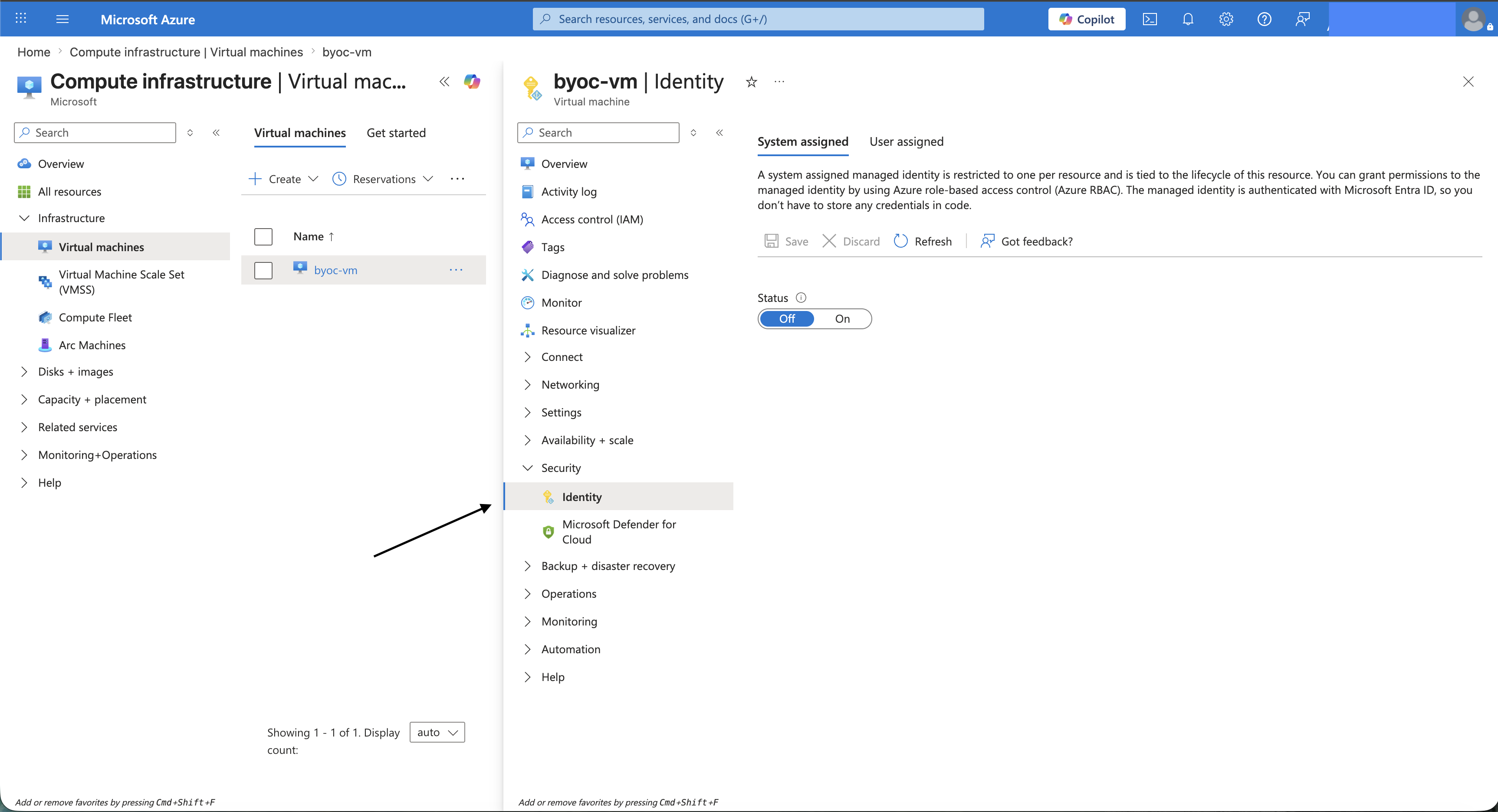
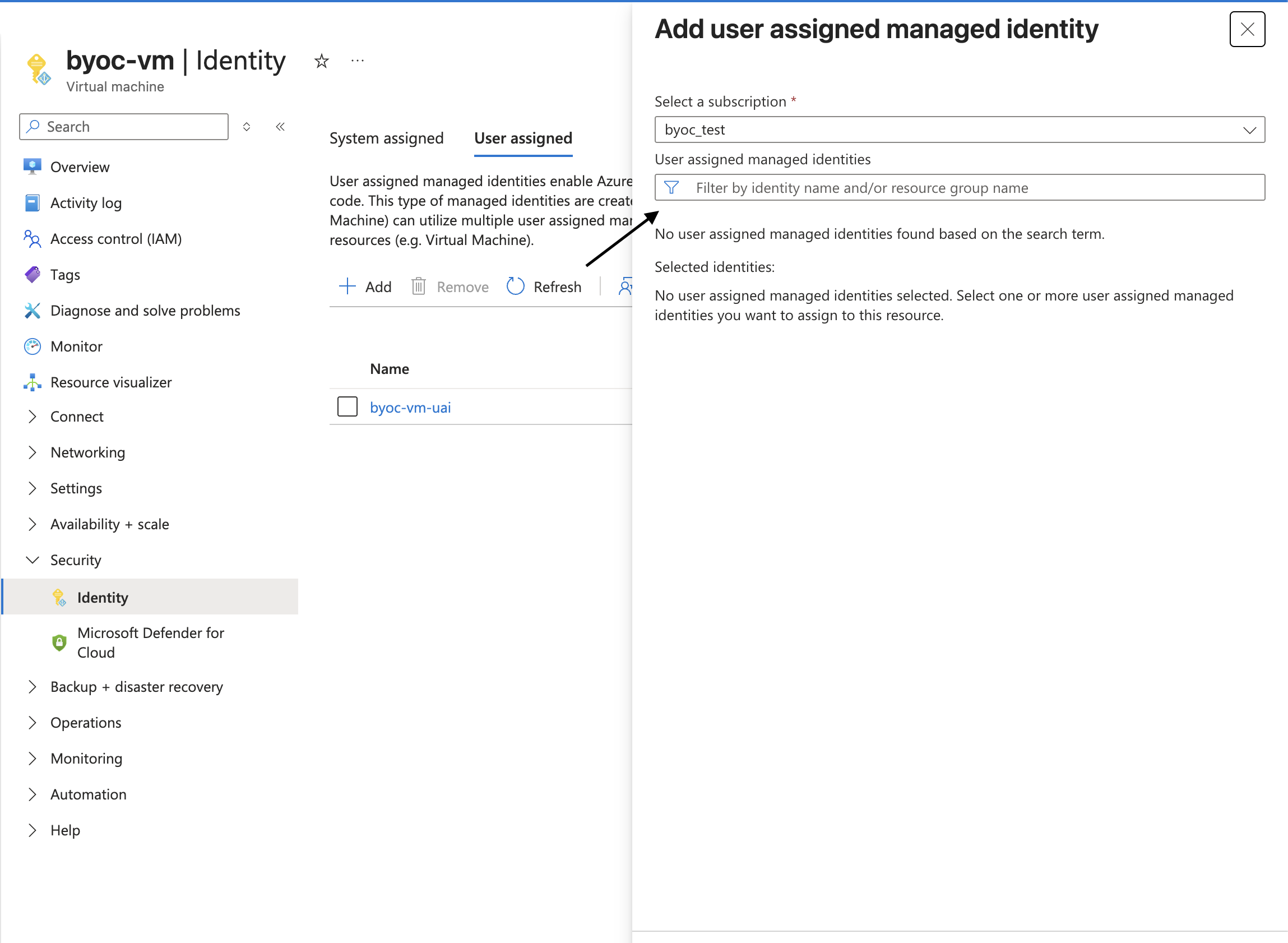
Open your VM → Security → Identity → User assigned → Add. Search for the identity by name, and add it.
On each subscription you want agents to read, go to Subscription → Access control (IAM) → Add role assignment → Reader → Managed identity. Search for the identity by name. Assign it on the subscription (not the VM) so agents can read across the whole subscription. To cover many subscriptions at once, assign Reader at a management group instead.
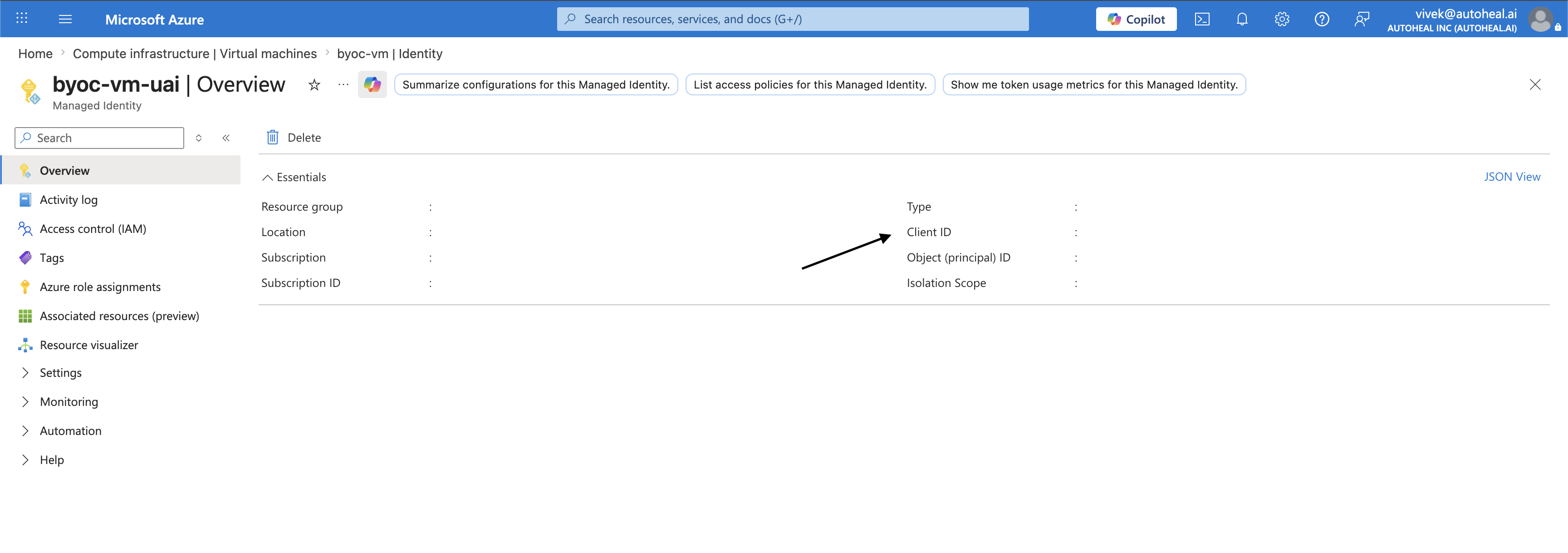
Copy the identity's Client ID (open the managed identity → Properties → Client ID).
SSH into the Autoheal VM and add it to your .env config:
# /opt/autoheal/.env
AZURE_BYOC_MANAGED_IDENTITY_CLIENT_ID=<client-id-guid>
Then restart Autoheal so that it loads the change.
Go to Integrations → Azure Cloud → Managed Identity and click Test Connection → Save. You do not need to enter any values. Test Connection lists the subscriptions the identity can read.
Prefer a system-assigned identity? Enable it on the VM's Security → Identity blade instead of creating one. Azure creates the identity and ties it to the VM, so the VM has a single identity. Leave AZURE_BYOC_MANAGED_IDENTITY_CLIENT_ID unset. Autoheal uses the system-assigned identity automatically.
The agent sandbox runs as a container on the VM and reaches the identity through the local metadata service at 169.254.169.254. If Test Connection fails, run this check from inside a sandbox container:
curl -s -H "Metadata: true" \
  "http://169.254.169.254/metadata/identity/oauth2/token?api-version=2018-02-01&resource=https://management.azure.com/"
A JSON token response means that the metadata service is reachable. A timeout means that the VM's container networking blocks link-local egress. In that case, allow 169.254.169.254 from the sandbox network.
Multiple subscriptions
One identity covers every subscription you grant it Reader on. A single Azure Cloud integration spans all of them, so you do not need a per-subscription integration.
- Grant access per subscription (repeat the Reader assignment for each), or once at a management group. A management group assignment automatically covers every subscription beneath it.
- Agents have no default subscription. They target one subscription explicitly in each query:
- They read the subscription from the alert's resource when present.
- Otherwise, they read it from the subscription map that you can label during setup.
- When the subscription is unknown, they use Resource Graph (
az graph query) to search across all of them.
- Scope it down by removing the Reader role on any subscription you don't want agents to touch. Agents can read exactly what the identity can read.
Limitations
- Single Entra tenant. One integration covers subscriptions in one Microsoft Entra tenant. Subscriptions in a different tenant need a separate identity and a separate integration.
- Control-plane reads by default. Data-plane reads (blob contents, Key Vault secret values) need separate, opt-in data roles.
- One identity for everything. Use the same identity for Azure Cloud and the Azure DevOps integration. Grant it Reader on your subscriptions, and add it to each Azure DevOps organization with read access. Use one identity and one Client ID everywhere. The agent sandbox shares one
azsession, so two different identities would conflict.
This is the Azure Cloud integration (Azure Resource Manager, management.azure.com). It is separate from Azure DevOps (dev.azure.com — repos, pipelines, wiki). Both use the az CLI but are distinct integrations.
Example questions
After you connect Azure Cloud, you can ask an agent:
List the resource groups and the VMs running in the prod resource group
Show the status and node pools of our AKS clusters
What's the CPU usage of the <service-name> VM over the last hour?
Query the Activity Log for failed deployments in the last 24 hours
Troubleshooting
Managed Identity: Test Connection fails / 'Please run az login'
Check that the managed identity is attached to the Autoheal VM. Check that the sandbox can reach 169.254.169.254 (see the metadata-service check above). For a user-assigned identity, check that AZURE_BYOC_MANAGED_IDENTITY_CLIENT_ID in .env is a concrete GUID (not a $(…) command). Also check that you restarted Autoheal.
WIF: Test Connection fails with AADSTS70021
The federated credential's issuer / subject / audience don't match Autoheal's, or the credential was just created. Re-check them against the Federated credential reference in the SaaS tab. Then retry after a short wait. Propagation can take a few minutes.
Test Connection succeeds but shows no subscriptions
The identity authenticated but has Reader on nothing yet. Add the role assignment on a subscription, or at a management group above it. Then retry. Assignments take a minute to propagate.
Test Connection shows fewer subscriptions than expected
The identity has Reader on only some of them. Grant Reader on each missing subscription (or once at a management group above them). Then retry. New assignments take a minute to propagate.
403 / access denied
The identity lacks the Reader role on that subscription. Add the role assignment on the subscription, or at a management group above it. Then retry. Assignments take a minute to propagate.
Can list resources but not metrics or logs
Add Monitoring Reader (for az monitor metrics list) and Log Analytics Reader (for az monitor log-analytics query).
How to revoke Autoheal's access
Delete the federated credential (SaaS) or detach the managed identity (BYOC), or remove the Reader role assignment.