Set up SSO with Microsoft Entra ID
This guide connects Autoheal to Microsoft Entra ID (formerly Azure Active Directory) with SAML 2.0, so your team signs in to Autoheal with their Microsoft accounts. It walks through both sides, the Autoheal Authentication page and the Microsoft Entra admin center, in the order you need them.
For how SSO works in Autoheal (connection states, enforcement, break-glass access, and just-in-time provisioning), see Single Sign-On (SAML).
Before you begin
You need:
- Org Admin in Autoheal. See Roles & Permissions.
- Cloud Application Administrator, Application Administrator, or Global Administrator in your Microsoft Entra tenant.
- To know where your users' email addresses live in Entra. Autoheal signs people in by email, and Entra only sends an email address if the attribute behind it has a value. Step 5, Configure the email claim, covers this. It is the step most setups get wrong.
- Your organization's break-glass URL, recorded somewhere you can reach without signing in to Autoheal. Enabling a connection requires SSO for every member of the organization.
Values you exchange
| From | Value | To |
|---|---|---|
| Autoheal | SP Entity ID / Audience | Entra Identifier (Entity ID) |
| Autoheal | ACS (Reply) URL | Entra Reply URL (Assertion Consumer Service URL) |
| Entra | App Federation Metadata Url | Autoheal Metadata URL |
Both Autoheal values are unique to each connection. Copy them from Autoheal; don't type them.
Set up the connection
- Start the connection in Autoheal
Choose your organization in the project switcher, open Authentication in its sidebar, and select Add SSO.
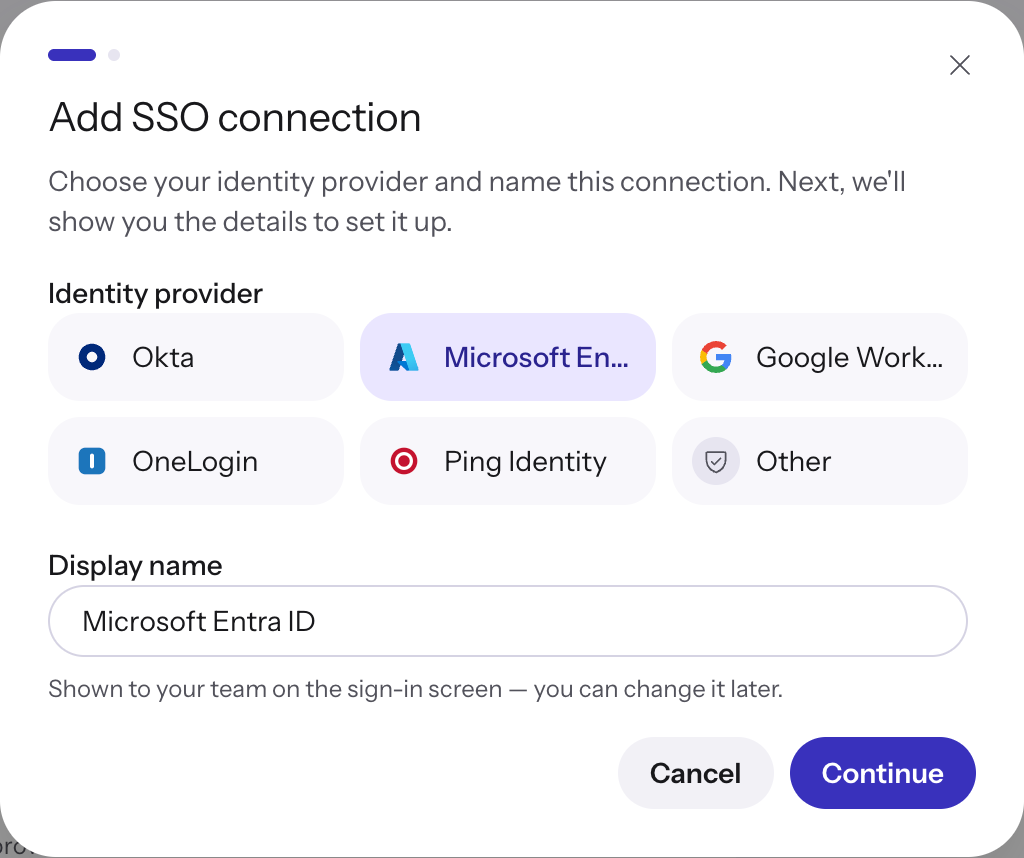
Select Microsoft Entra ID as the identity provider. This pre-fills the Display name, which your team sees on the sign-in screen. Change it if you like, then select Continue. The connection is created in the Needs setup state, with no effect on sign-in.
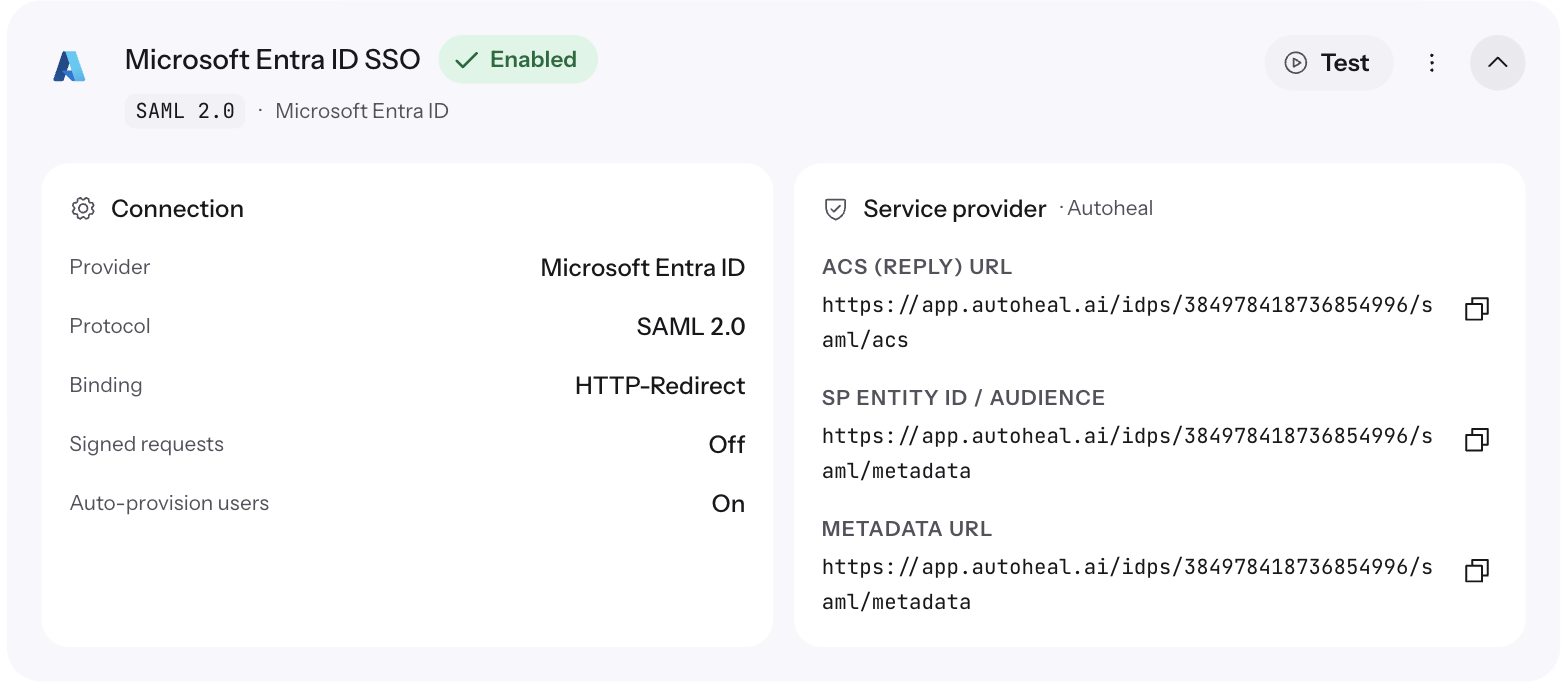
The next step shows the connection's ACS URL (Reply URL) and Entity ID (Audience), each with a copy button. Keep this tab open: you paste both values into Entra, then come back for the metadata.
You can find the same values later by expanding the connection on the Authentication page:
- Create an enterprise application in Entra
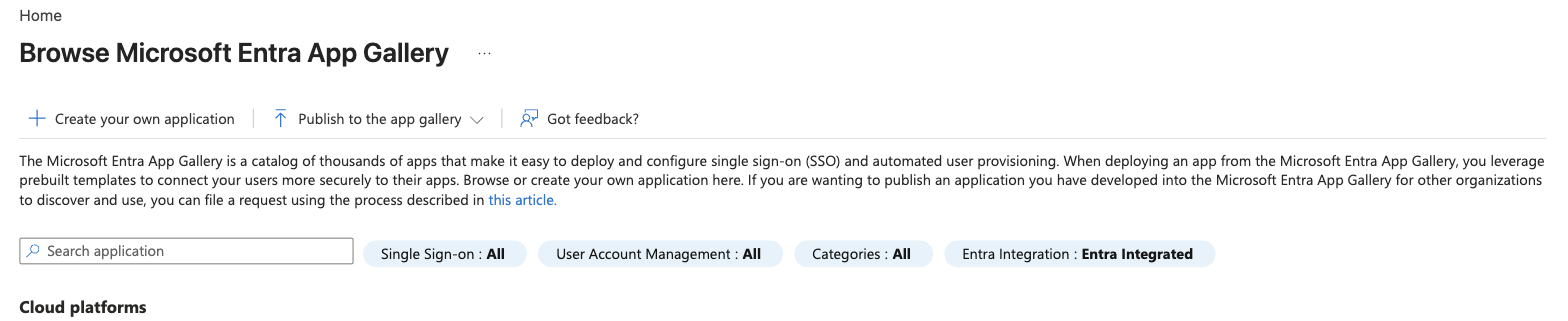
In the Microsoft Entra admin center, go to Entra ID → Enterprise apps → New application, then select Create your own application.
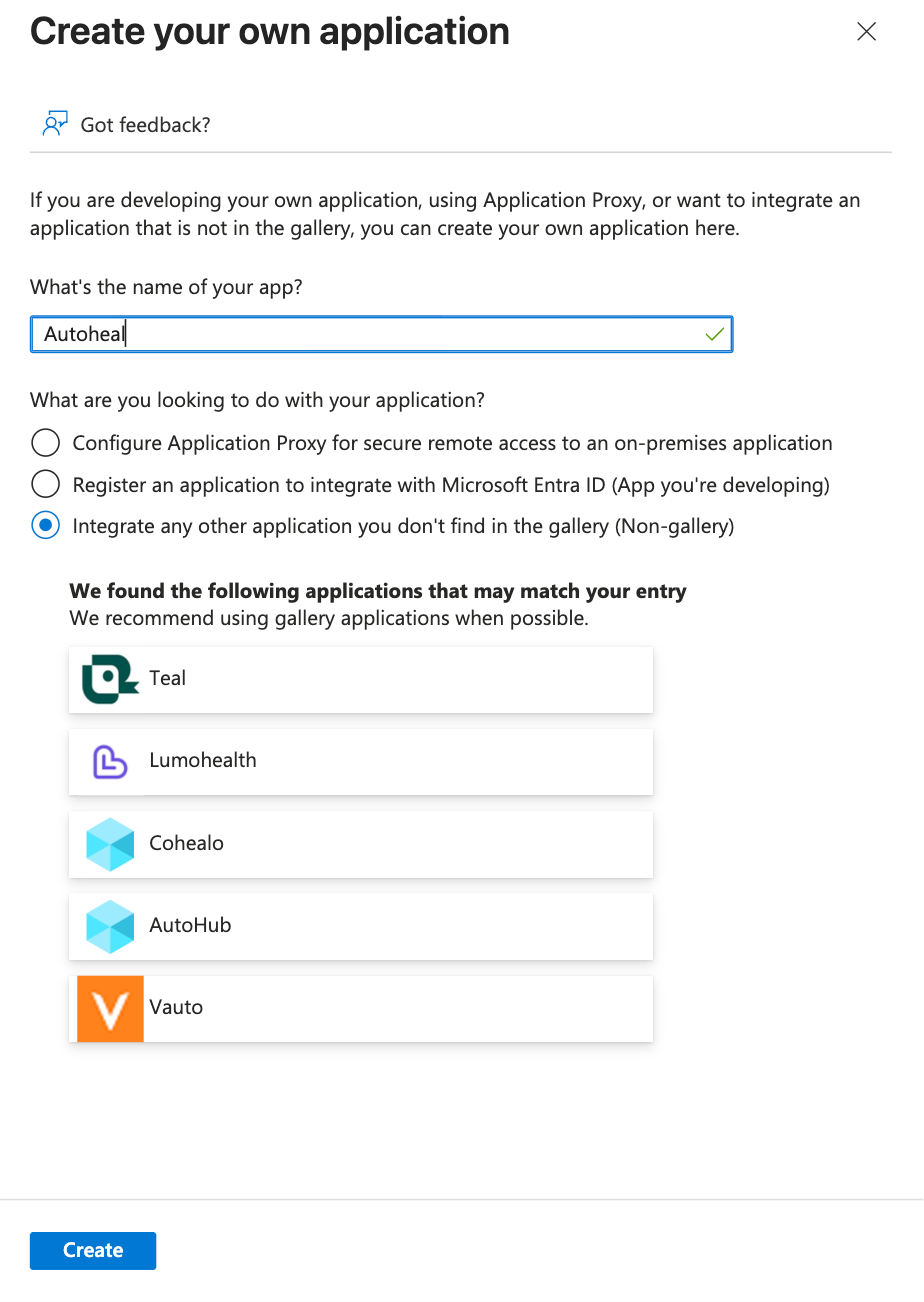
Name the application, for example
Autoheal. Select Integrate any other application you don't find in the gallery (Non-gallery), then select Create.Entra may suggest gallery apps with similar names. Autoheal is not in the gallery, so ignore them.
- Choose SAML
In the new application, open Single sign-on and select SAML.
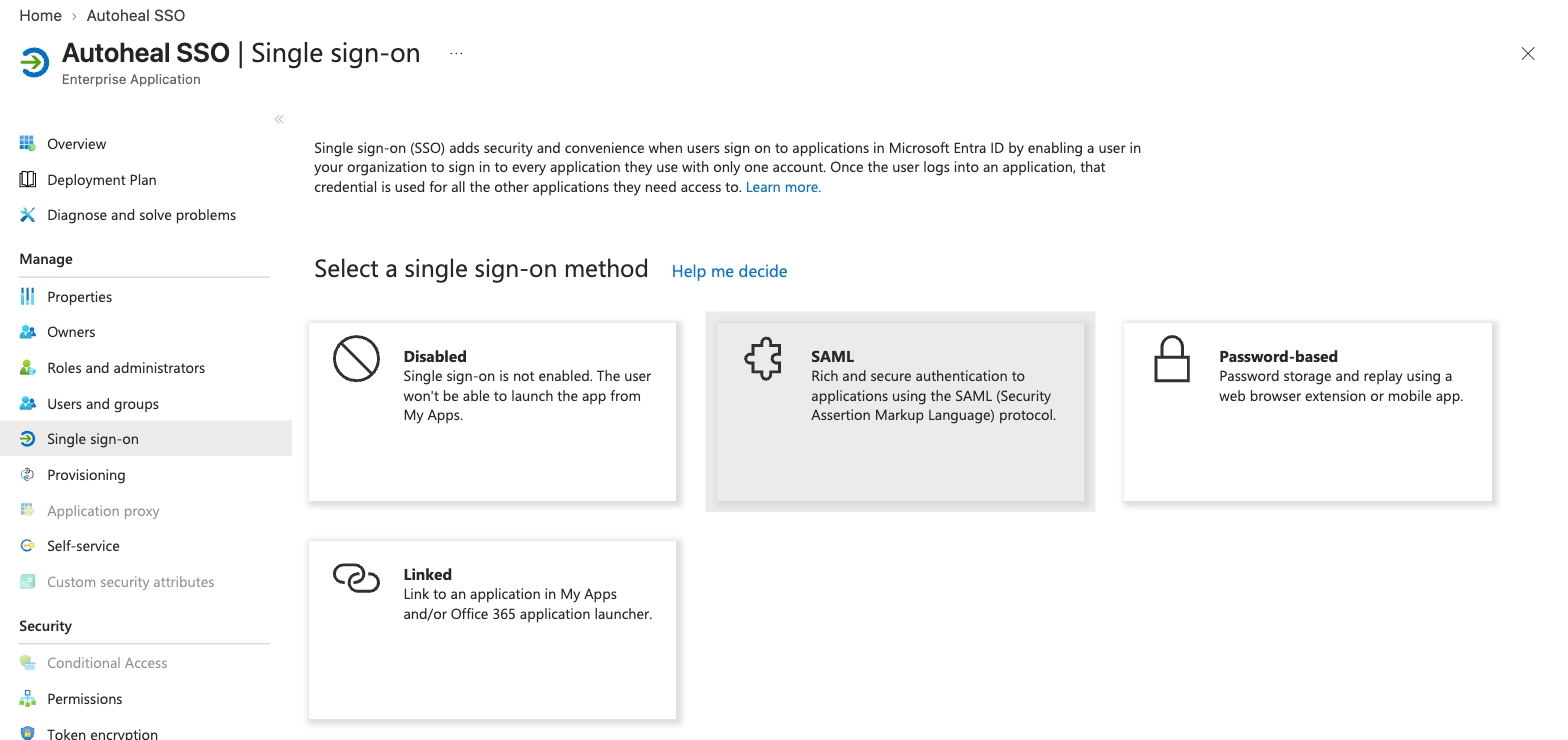
Entra opens Set up Single Sign-On with SAML. The rest of the Entra setup happens on this page, in its numbered cards.
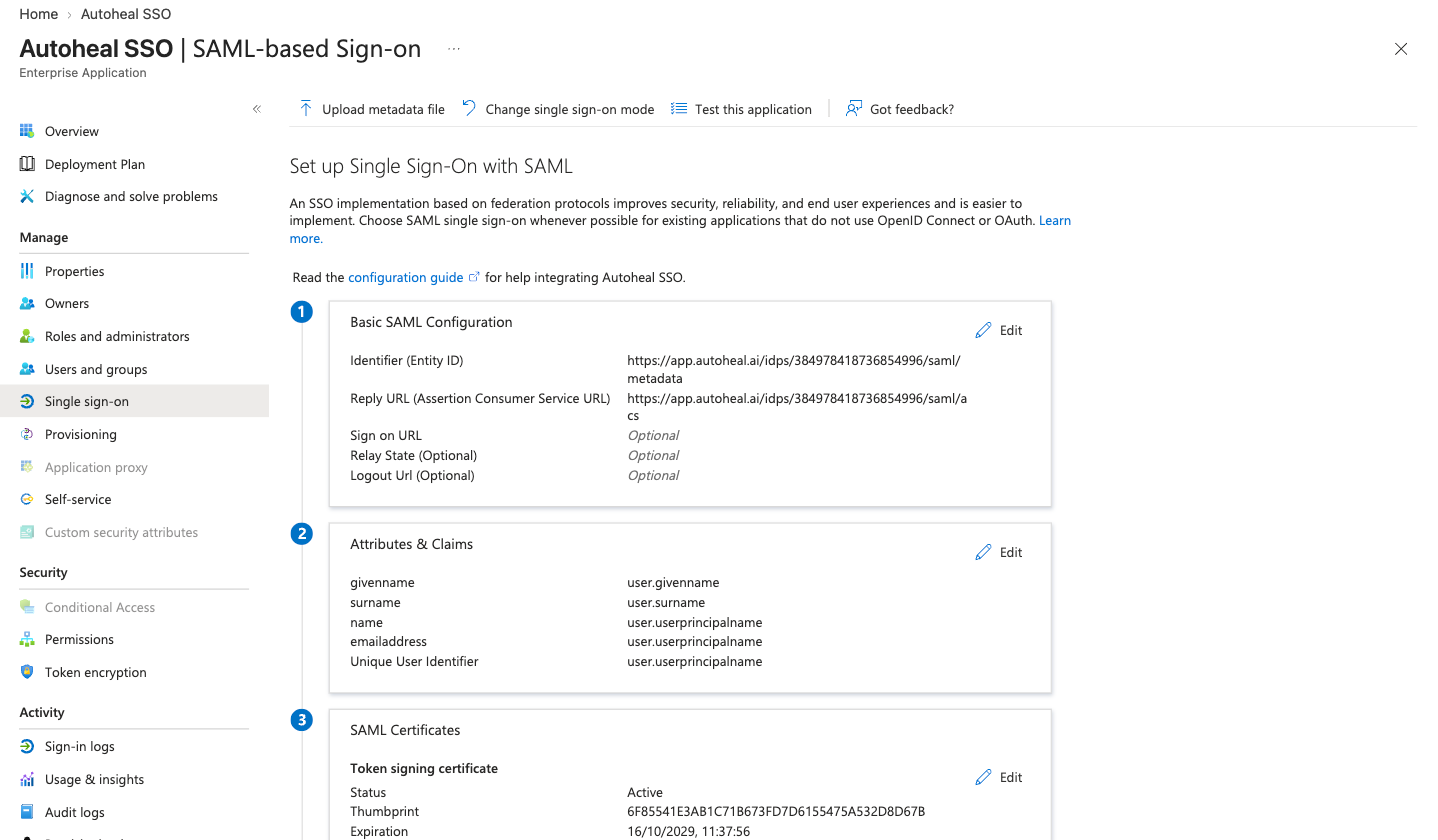
- Enter the Basic SAML Configuration
On the Basic SAML Configuration card, select Edit, and fill in:
Entra field Value from Autoheal Identifier (Entity ID) Entity ID (Audience), ending in /saml/metadataReply URL (Assertion Consumer Service URL) ACS URL (Reply URL), ending in /saml/acsLeave Sign on URL, Relay State, and Logout Url empty. Select Save.
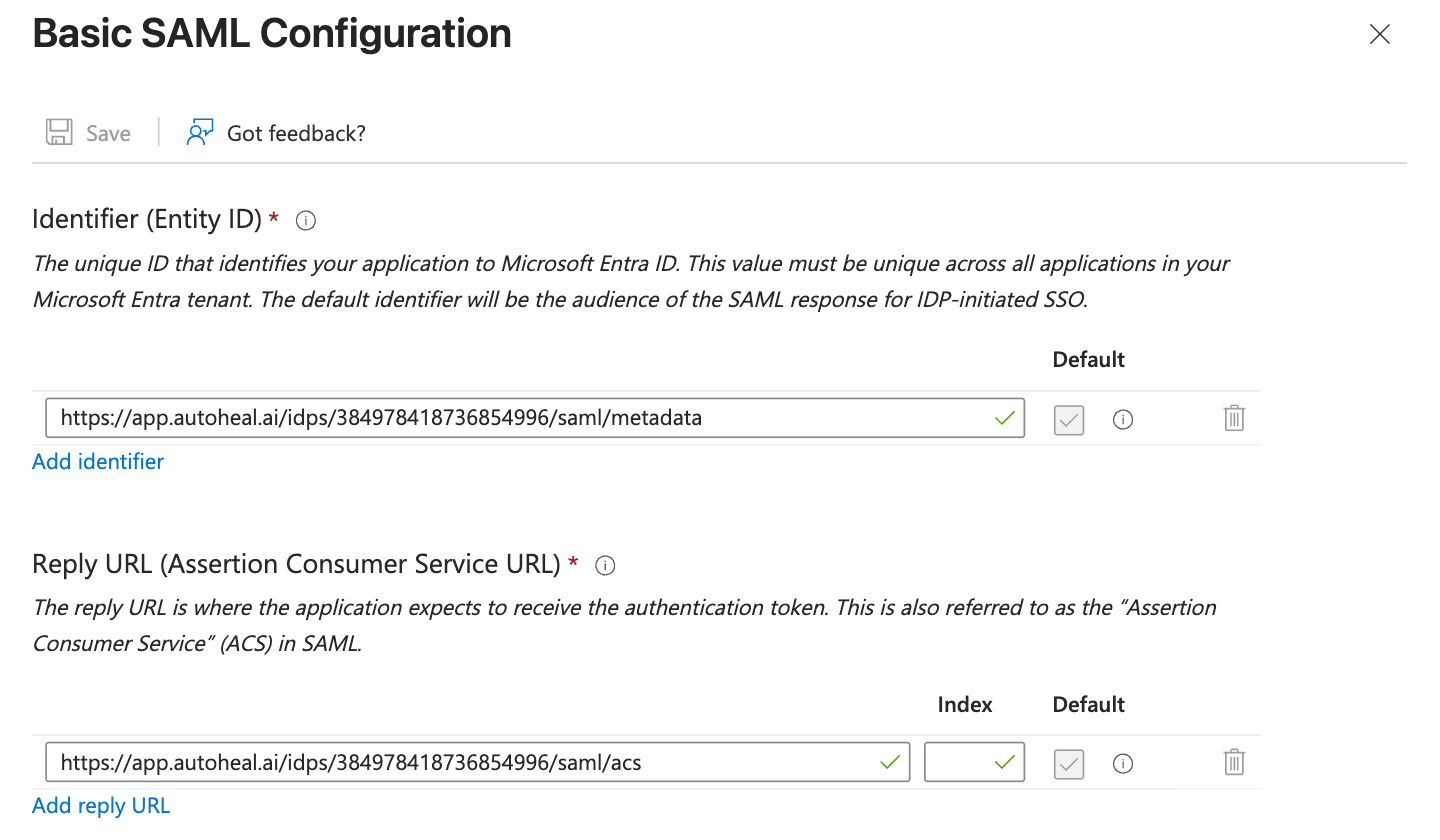
Both values must match Autoheal's exactly, character for character, including the
https://prefix and with no trailing slash. - Configure the email claim
On the Attributes & Claims card, select Edit. Autoheal reads the claim named
http://schemas.xmlsoap.org/ws/2005/05/identity/claims/emailaddress, which Entra includes by default.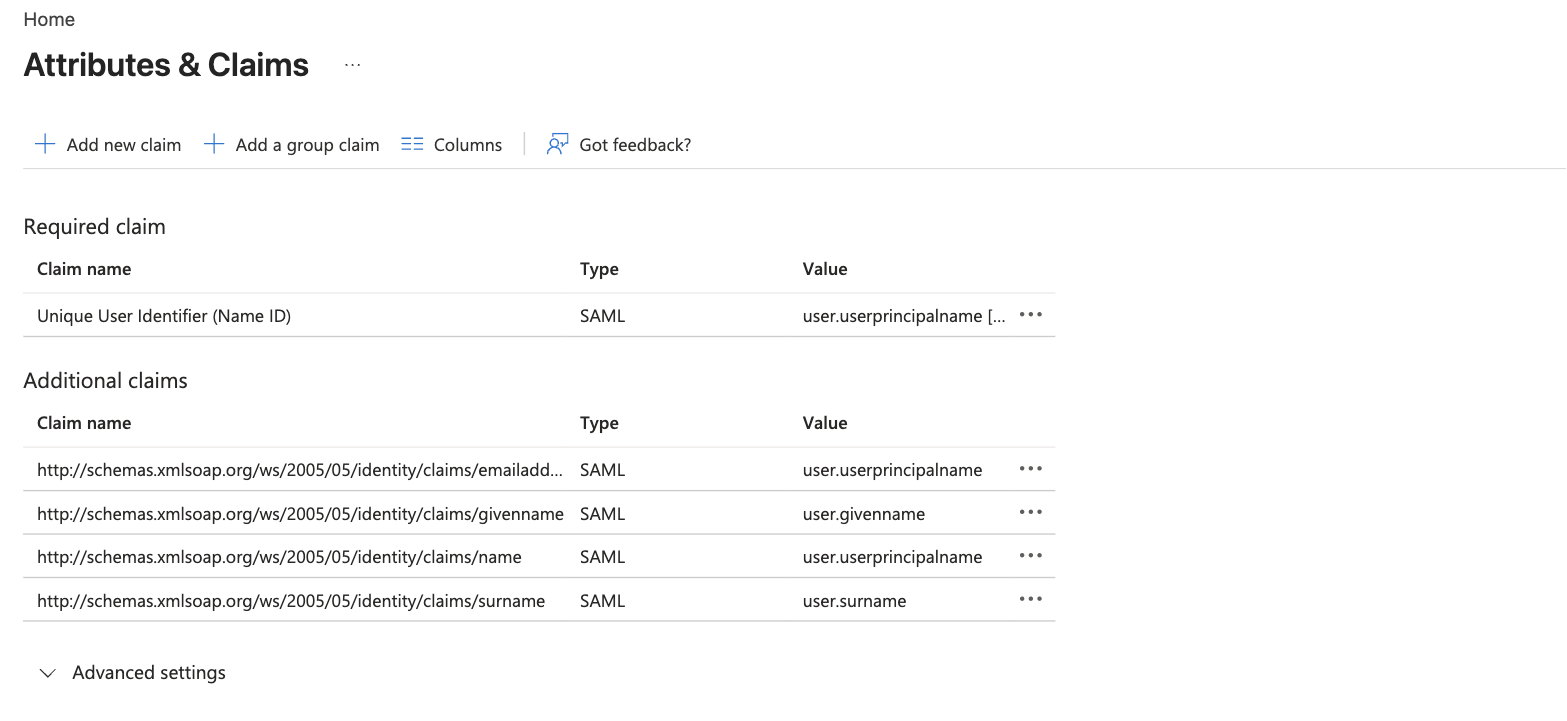
By default this claim's source is
user.mail, the user's Email field in Entra. That field is often empty, typically for users with no Exchange Online mailbox. Entra leaves an empty claim out of the assertion entirely, so those users can't sign in to Autoheal, and the sign-in fails witherror=sso_failed.Choose the source that holds a real email address for every user who will use Autoheal:
- If your users' sign-in names (UPNs) are their email addresses, for example
dana@acme.com: select theemailaddressclaim and set Source attribute touser.userprincipalname. - If your UPNs are not email addresses, for example
dana@acme.onmicrosoft.com: keepuser.mail, and make sure every user's Email field is filled in.
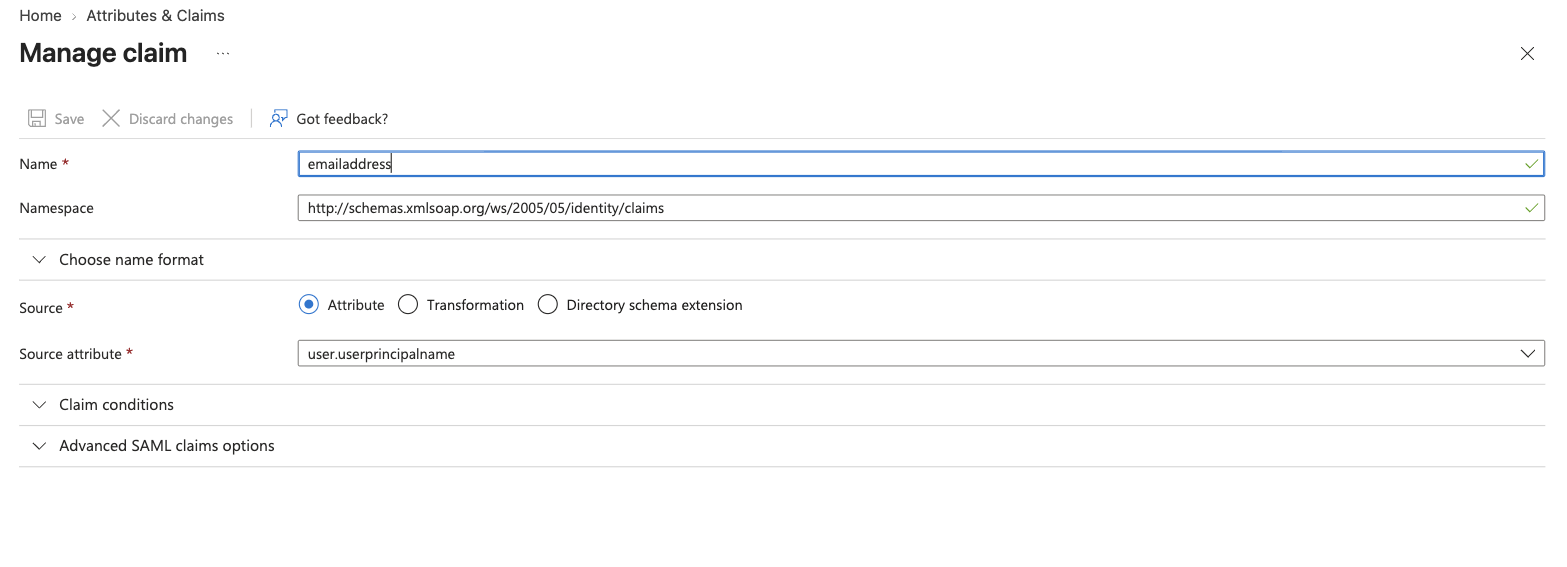
Select Save at the top of the Manage claim pane. Closing the pane without saving discards the change, and the claims list still shows the old source.
noteThe Unique User Identifier (Name ID) row doesn't affect Autoheal. Autoheal asks Entra for a persistent identifier, so Entra sends an opaque, stable ID as the Name ID whatever source you set here, and Autoheal doesn't read it as an email address. Leave it as it is. The email has to come from the
emailaddressclaim.The email Entra sends is the one Autoheal matches. It must be the address the person uses in Autoheal, and its domain must be on your organization's Allowed email domains for just-in-time provisioning.
- If your users' sign-in names (UPNs) are their email addresses, for example
- Copy the App Federation Metadata Url
On the SAML Certificates card, copy App Federation Metadata Url.
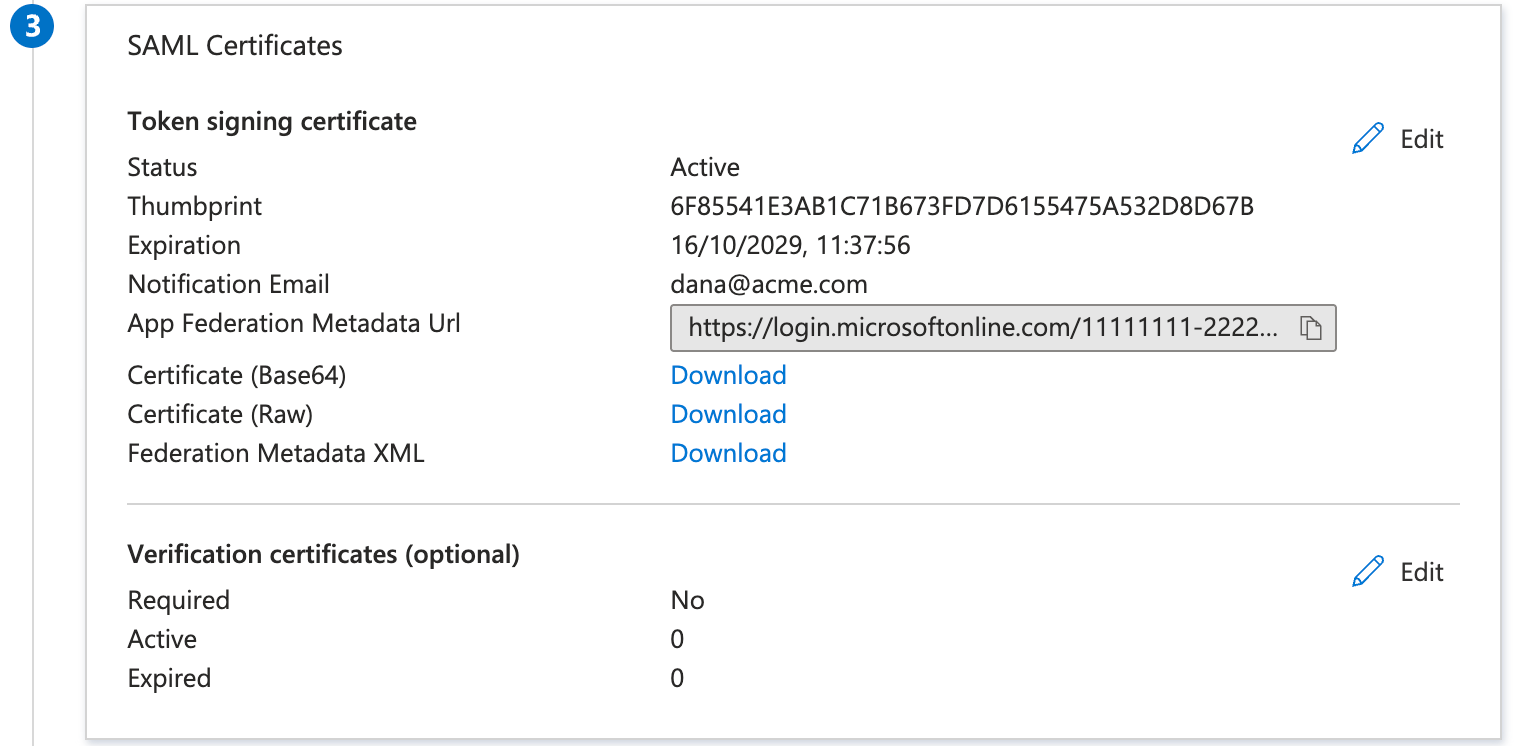
Downloading Federation Metadata XML and uploading it to Autoheal works too. Either way, Autoheal stores a copy of the metadata when you save the connection. Entra's signing certificate is valid for three years by default (see Expiration). When Entra renews it, edit the connection in Autoheal and supply the metadata again.
Leave Token encryption (under Security in the app's menu) off. Autoheal accepts signed, unencrypted assertions only.
- Assign users and groups
Open Users and groups in the application's menu, select Add user/group, and assign the people or groups who need Autoheal.
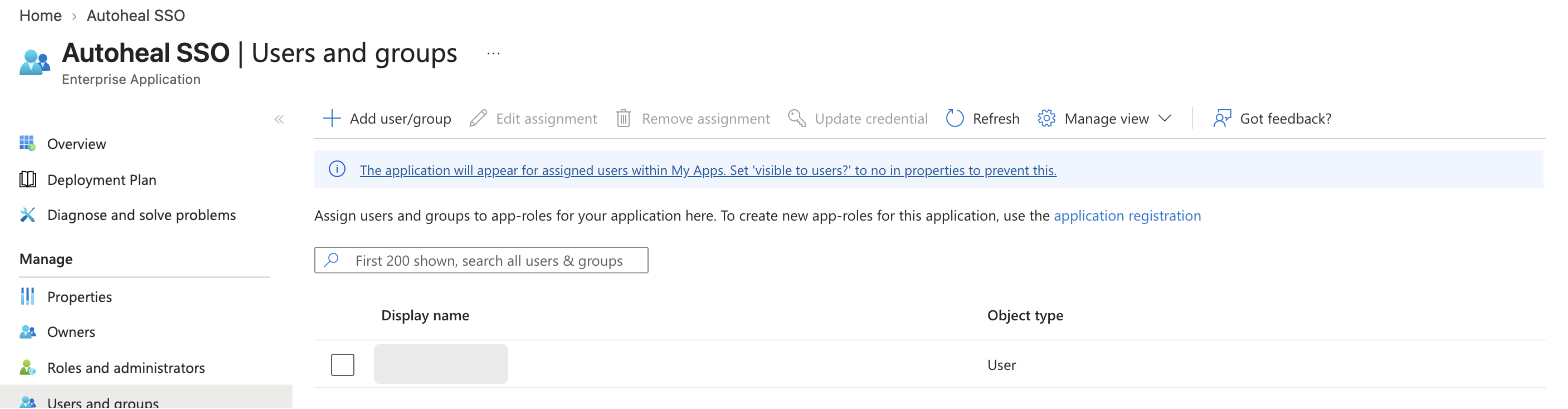
When Assignment required? is Yes on the application's Properties page, Entra only lets assigned users sign in. Everyone else gets error
AADSTS50105from Microsoft before they reach Autoheal. - Finish in Autoheal
Back in the Autoheal wizard, under Identity provider metadata, keep Metadata URL selected and paste the App Federation Metadata Url.
Leave Automatically create users on first login enabled unless you pre-provision every user, then select Finish. The connection moves to Disabled: fully configured, and still with no effect on sign-in.
- Test, then enable
Select Test on the connection. A new tab signs you in through Entra and shows what Autoheal received.
Check that Email shows your email address. If it is blank, Entra sent no email: go back to step 5, Configure the email claim.
When the test shows your email, select Enable and confirm. From then on, every member of the organization signs in through Entra. Use the break-glass URL if you get locked out.
To check the result as a regular user, open your Autoheal URL in a private browser window and sign in with an assigned test account.
Troubleshooting
Sign-in returns to the login page with error=sso_failed
Entra signed the user in, but the assertion had no email address Autoheal could read. With Entra, the cause is almost always the emailaddress claim's source attribute being empty for that user.
- Run Test on the connection. A blank Email confirms it.
- In Entra, open the application's Attributes & Claims, and check the
emailaddressclaim's source. If it isuser.mail, check the user's Email field in Entra. - Switch the source to
user.userprincipalnameif UPNs are email addresses, or fill in the user's Email field. See step 5, Configure the email claim.
Changing the Unique User Identifier (Name ID) does not fix this. See the note in step 5.
Sign-in worked before and now fails
Entra probably renewed its signing certificate. Check Expiration on the SAML Certificates card, then edit the connection in Autoheal and supply the App Federation Metadata Url again.
I changed the claim, but sign-in still fails
Open Attributes & Claims again and check the claim's Value column. If it still shows the old source, the edit wasn't saved: open the claim, change the source, and select Save at the top of the Manage claim pane.
Also confirm you edited the right application: its Basic SAML Configuration must show this connection's Identifier and Reply URL.
Microsoft shows AADSTS50011 (reply URL mismatch)
The Reply URL in Entra doesn't match the connection's ACS URL. Copy the ACS URL again from the expanded connection in Autoheal and paste it into Basic SAML Configuration.
Microsoft shows AADSTS700016 (application not found)
No application in your tenant has this connection's Entity ID as its Identifier. This usually means the connection was recreated in Autoheal and has a new Entity ID. Update Identifier (Entity ID) in Basic SAML Configuration to match.
Microsoft shows AADSTS50105 (user not assigned)
The user isn't assigned to the application, and Assignment required? is Yes. Assign them, or a group they belong to, under Users and groups.
A new user gets 'No access to this organization'
Entra signed them in, but Autoheal refused to create their account. Either just-in-time provisioning is off, or their email domain isn't in Allowed email domains. See User provisioning.
Related
- Single Sign-On (SAML): how connections, enforcement, and break-glass access work
- What Autoheal expects in the assertion: the full list of email attributes Autoheal reads
- Managing Access: give SSO users roles after they sign in