Secrets
When an agent needs an API token, password or other credential, save it as a secret and use its ID in the agent spec. You can use the same secret in several agents without copying the value into their configuration.
Secrets live in Settings → Secrets and belong to the selected project. There are no organization-wide secrets.
Create a secret
For an agent that calls a service's API, start by saving that service's token:
- Select your project and open Settings → Secrets.
- Click New secret.
- Enter an ID, such as
service_token. - Paste the token into Value, then click Create.
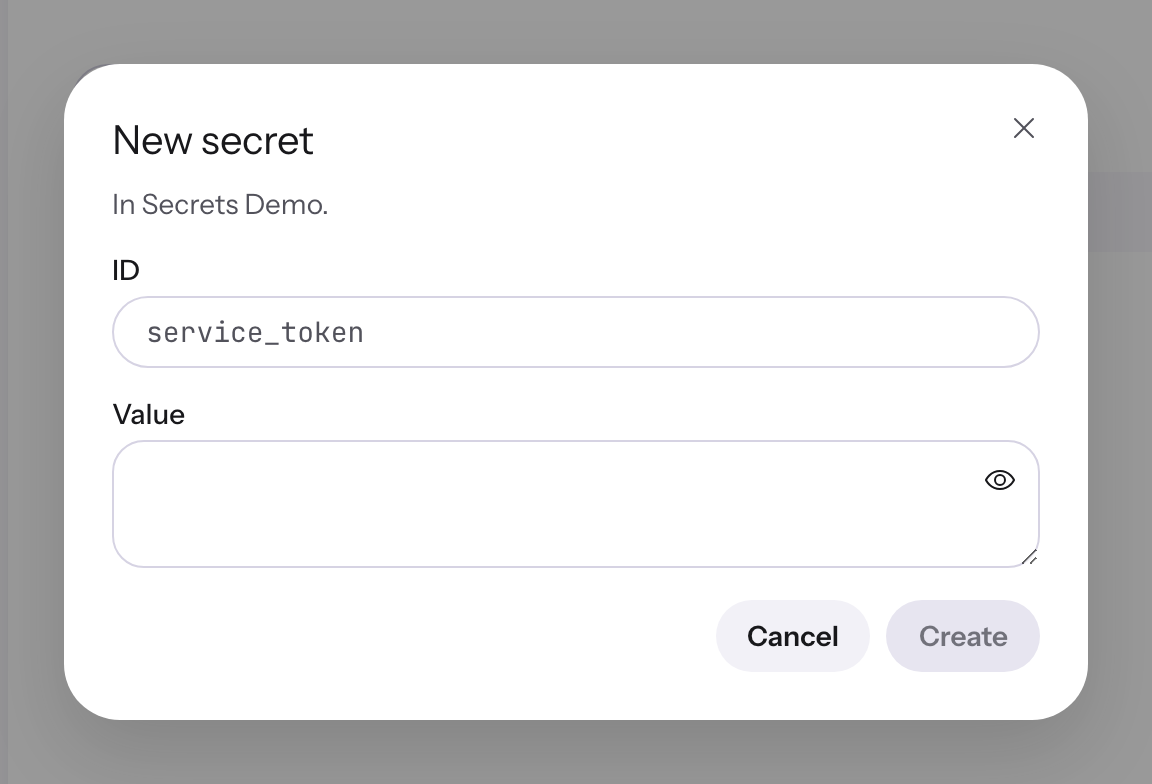
You can also save multiline text or JSON, such as a certificate or a credentials file. The value cannot be empty.
- Start with a lowercase letter, then use lowercase letters, digits or underscores.
- Use at most 64 characters. The accepted pattern is
^[a-z][a-z0-9_]{0,63}$. - IDs are unique within a project and cannot be renamed.
After saving, you cannot view the value again in Settings or through the secret-management API, even as an administrator.
Add a secret to an agent
Autoheal masks saved secret values in command output, MCP tool responses and error messages.
Use the same credential throughout the agent
If several commands need the token, add it to the agent's environment. Add this at the top level of agent.yaml, alongside fields such as inputs and steps:
env:
  - name: API_TOKEN
    value: ${{ secrets.service_token }}
service_tokenis the ID of the secret you saved in Settings.API_TOKENis the environment variable available to every command in the agent's sandbox.
Read the value in your code using:
- Bash:
$API_TOKEN - Python:
os.environ["API_TOKEN"]
When writing the agent spec:
- Keep the secret expression as the entire
value.value: Bearer ${{ secrets.service_token }}is not supported. - For a header such as
Bearer <token>, addBearerin your code using the environment variable. - Do not put the secret expression directly in code or instructions.
Choose a different credential for each run
You may want the same agent to check staging in one run and production in another. Save a token for each environment, then add an input so the person starting the run can choose:
For example, save this agent as agents/service-status/agent.yaml:
apiVersion: agents.autoheal.ai/v1
name: Service Status
instructions: |
  Check the service's status API to investigate the request in the prompt.
  Use API_TOKEN for authentication. Do not print or return the token.
inputs:
  prompt:
    type: string
    required: true
  token:
    type: string
    default: ${{ secrets.service_token }}

env:
  - name: API_TOKEN
    value: ${{ inputs.token }}
with:
  prompt: ${{ inputs.prompt }}
When starting a run:
- Enter what you want to check in Prompt.
- Leave the default to use
service_token. - To use another saved token, choose Secret and search for its ID in the current project.
- Use Value only for non-sensitive text. These values are saved with the run's inputs. For credentials, save a secret and choose Secret.
Use ${{ inputs.token }} as the entire environment value, as shown above. Do not build a secret reference by joining text or taking a value from a step's output.
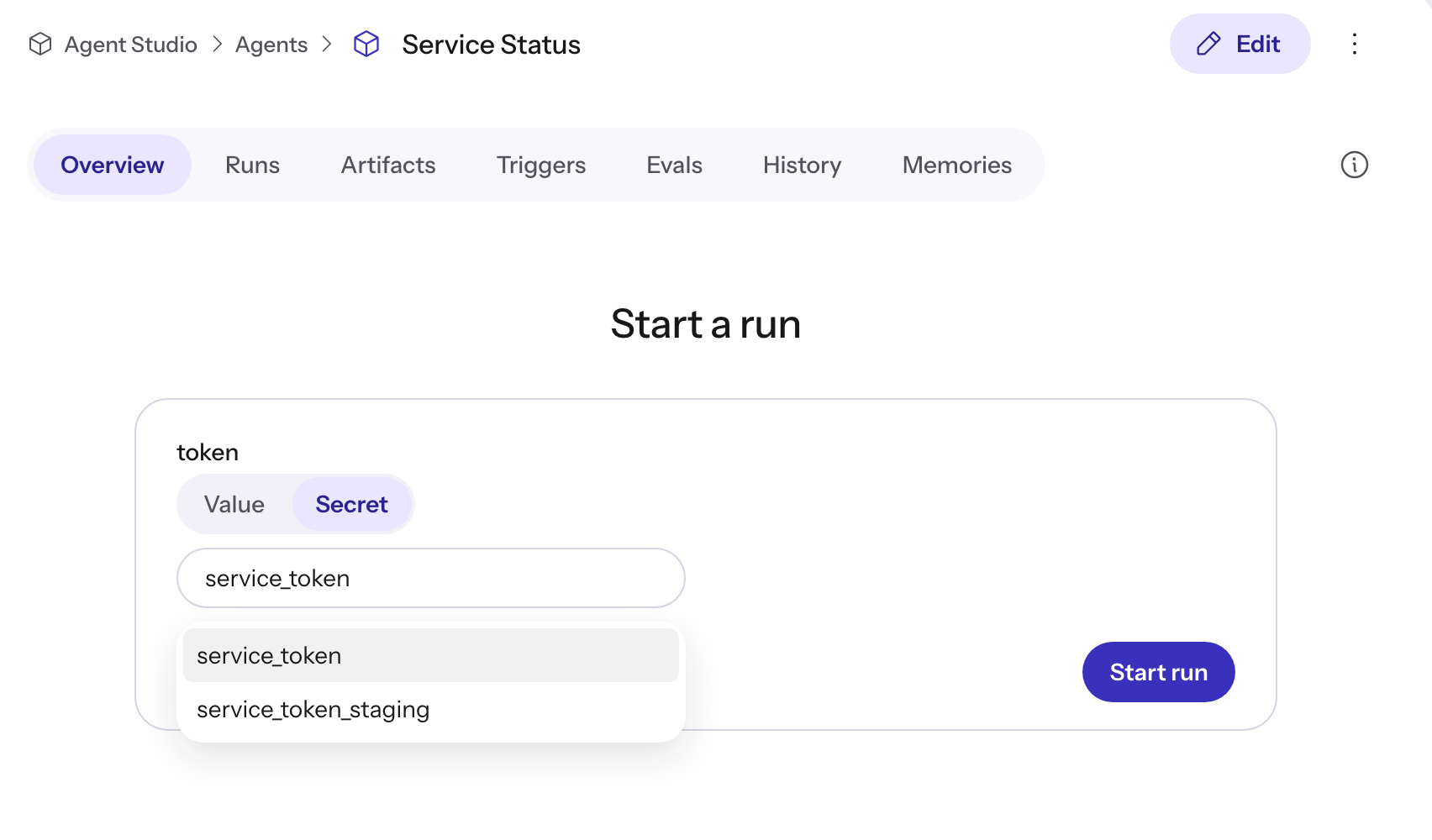
If a selected ID was deleted or belongs to another project, the form shows Not found in this project.
Use a credential for just one API call
If only one step needs the token, put it in that step's env. For example, this step calls a status API:
steps:
  - id: fetch_status
    runtime: bash
    env:
      - name: API_TOKEN
        value: ${{ secrets.service_token }}
    code: |
      curl --fail --silent --show-error \
        -H "Authorization: Bearer $API_TOKEN" \
        https://api.example.com/status
The token is available only to this command.
To let the person starting the run choose this token, use the input from the previous example and set the step's environment value to ${{ inputs.token }}.
Pass a secret to another saved agent
When a step calls another saved agent, Autoheal starts that agent in a separate sandbox automatically. There is no sandbox setting to add. For example:
steps:
  - id: check_service
    agent: agents:service-status
    with:
      prompt: "Check the service's status API."
      token: ${{ secrets.service_token }}
The called agent:
- Inherits the parent's environment settings.
- Can add its own
enventries. If both agents set the same variable, the called agent's setting wins. - Has its own files. It cannot read files from the parent's sandbox.
See Calling agents and tools and the code execution rules.
If the called agent has a token input, pass it through the step's with:
- Use
${{ secrets.service_token }}to choose a particular secret. - Use
${{ inputs.token }}to pass on the token selected for the parent run.
Write either expression as the whole input value. An LLM's delegation arguments and a step's output cannot select a secret.
Use a secret in an inline subagent
Inline subagents share their parent's sandbox. Add the secret to the parent agent's top-level env. Commands run by the inline subagent can then use $API_TOKEN, just like commands run by the parent. No extra secret binding is needed in the inline subagent.
Choosing environment variable names
Use a different name for each environment variable. Reserved names depend on where you set it:
- In the agent's top-level
env:HOME,SANDBOX_ID,SANDBOX_TYPE,WF_CODE, and names starting withAUTOHEAL_orGIT_CONFIG_. - In a code step's
env:WF_CODE,AUTOHEAL_INPUTandAUTOHEAL_OUTPUT.
An integration may already use a name you chose. Its value takes precedence for commands that use that integration, so choose another name to avoid a conflict. Autoheal warns about known conflicts when you push the agent.
See the Agent and Trigger Reference for complete agent and trigger examples.
Use a secret when a trigger starts the agent
A trigger is configured separately from agent.yaml. It decides when to start the agent and which inputs to pass.
This trigger starts the agents/service-status/agent.yaml agent above when a critical alert group is created. Create it on the Triggers page:
apiVersion: triggers.autoheal.ai/v1
name: Check service status for critical alerts
on:
  alertgroup.created:
    - status: firing
    - severity: critical
run:
  agent: agents:service-status
with:
  prompt: "Check the service status for ${{ event.data.title }}."
  token: ${{ secrets.service_token }}
onspecifies the event and filters that start the run.run.agentpoints to the agent's folder in your repository.with.tokenchooses the secret to pass to the agent'stokeninput.
The agent and secret must belong to the same project. Write the secret reference in the trigger itself; an alert field, pull request title or other event data cannot choose which secret to use.
Manage saved secrets
Find a secret
Open Settings → Secrets and use Search by ID. Click a secret to see who created or changed it and when.
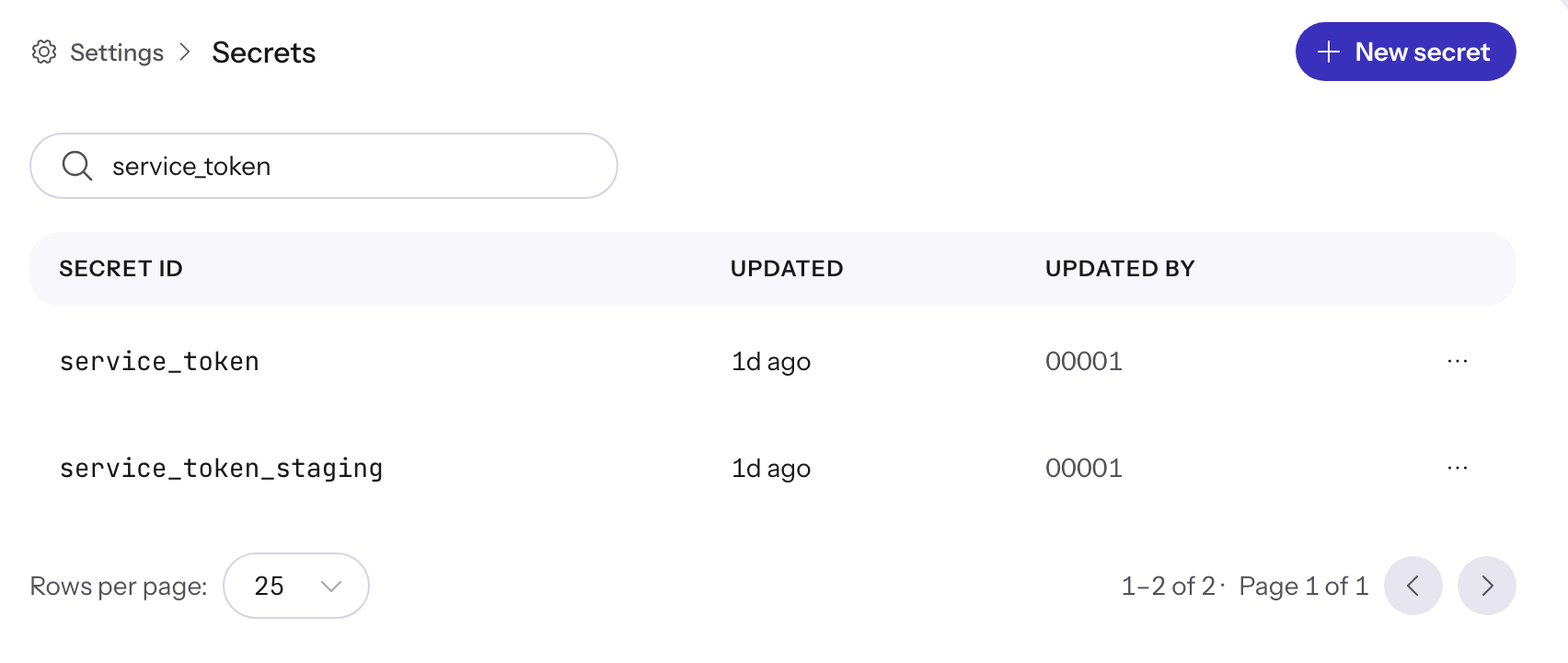
If an ID is missing, check that you have selected the right project.
Replace a token after rotating it
Once you have a new token from the service, update the saved secret:
- Open the secret from the list.
- Paste the token into New value. The field is empty because the saved value cannot be read back.
- Click Replace value.
Remove a credential you no longer need
- Open Settings → Secrets.
- Open the secret's row menu and choose Delete.
- Click Delete secret to confirm.
Autoheal cannot restore a deleted secret. You can create a new secret with the same ID if you need it again.
References to a deleted secret are ignored.
Permissions
Access is checked in the project that owns the secret. See Roles & Permissions for which roles can do each task.
- If an agent accepts a secret input, anyone who can run it can choose any secret in that project for that input.
- Searching for a secret in the run form requires
secret:read. - Creating, replacing or deleting secrets requires the corresponding management permission. Run permission does not grant these permissions.
- None of these permissions lets you view a saved value.
API reference
These are the endpoints used by Settings → Secrets. They require a signed-in browser session; personal access tokens and service-account keys cannot call them. See Which endpoints accept an API credential.
Add project_id to every request, for example GET /api/v1/secrets?project_id=payments. In the paths below, {secret} is the secret's ID.
| Method and path | Success |
|---|---|
GET /api/v1/secrets | 200, list of secret details |
POST /api/v1/secrets | 201, created secret's details |
GET /api/v1/secrets/{secret} | 200, secret details |
PUT /api/v1/secrets/{secret}/value | 200, updated secret's details |
DELETE /api/v1/secrets/{secret} | 204, no body |
To create a secret, send this JSON body with POST:
{
  "id": "service_token",
  "value": "<new-secret-value>"
}
To replace a value, send this JSON body with PUT:
{
  "value": "<replacement-secret-value>"
}
Responses contain the ID, project, creation and update times, and who made the changes when known. They never contain the value or its location in the secret store.
The list accepts search to filter by ID, limit (1–200, default 50), and offset (zero or greater, default 0). Its response contains items, total, limit and offset.
Errors
| Status | Meaning and next step |
|---|---|
400 | Invalid ID, empty value or invalid request. Correct the request before trying again. |
401 | You are not signed in, your session expired, or the request used an API credential. These endpoints require a browser session. |
403 | You lack the required permission in the project. |
404 | The project is unknown, or the secret does not exist in that project. |
409 | The ID already exists, or another write changed the value in Vault before yours could save. In a Vault conflict, your write saved nothing. Refresh before trying again. |
413 | Vault rejected an oversized value. Reduce its size before trying again. |
422 | project_id is missing. Add it to the query string. |
500 | An operation failed. Read the note below before retrying a replacement. |
A failed request does not always mean the old value is still in place. If the store saved a replacement but Autoheal could not record the change, the error tells you that the new value is stored and in use. A timeout alone does not confirm whether the save succeeded.